1. Create a VM
Start from a base template such as Ubuntu desktop and open it in the browser through Selkies, direct VNC, or Guacamole.
Server-first control plane
Parallaize keeps heavy agent desktops off your laptop and inside one managed host, with browser access, packaged installs, and room to scale. Perfect with Hetzner dedicated servers.
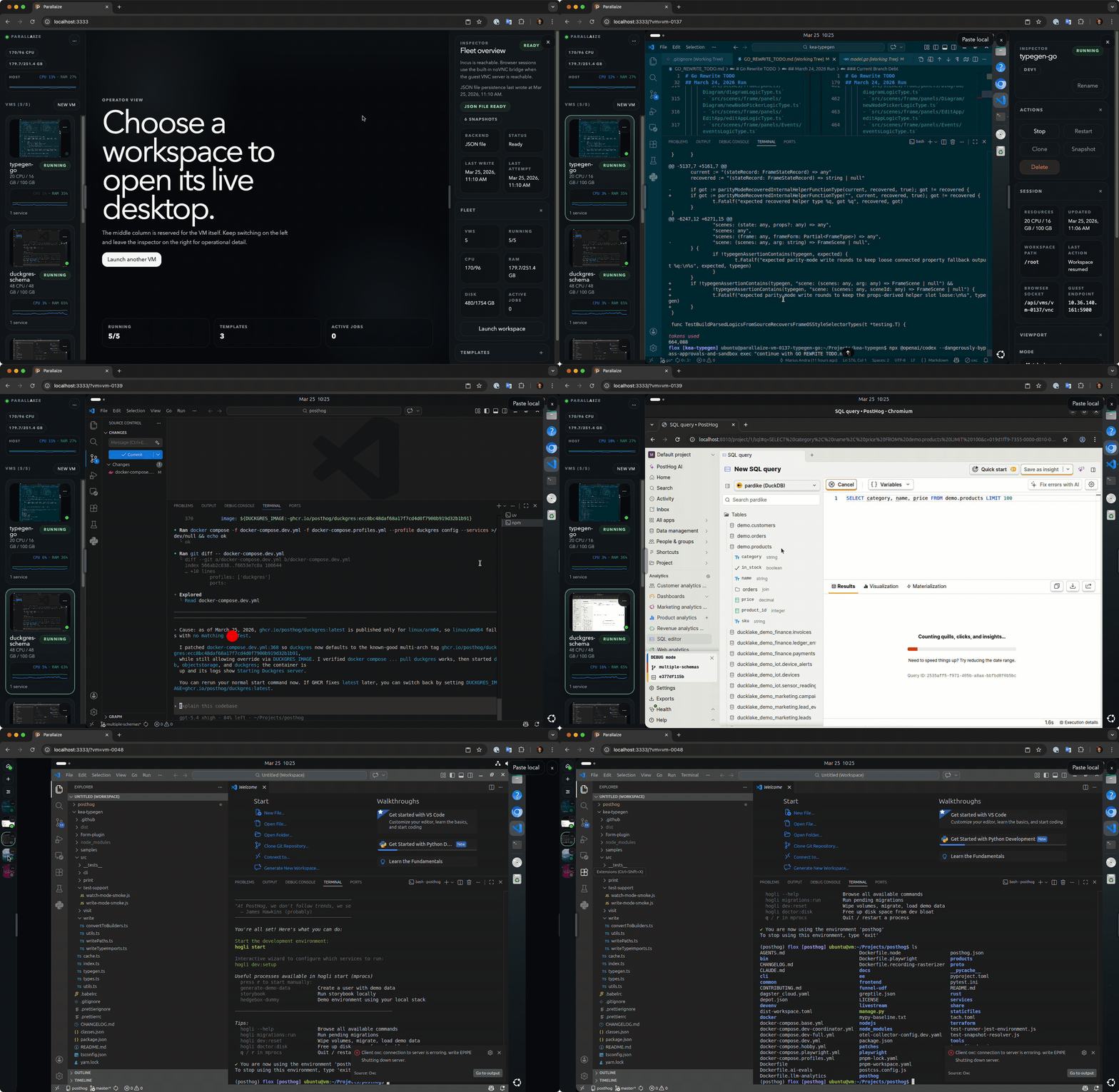
Basic usage
Parallaize is built around a simple loop: launch a VM, pretend it's the year of the Linux desktop, configure it exactly how you want, then either save it as a reusable template or clone it directly into as many workspaces as you need.
Start from a base template such as Ubuntu desktop and open it in the browser through Selkies, direct VNC, or Guacamole.
Install tools, pull repositories, set up services, and shape the machine until it matches the environment you want operators or agents to use.
Capture the result as a template for future launches, or clone the VM into a larger fleet when you want several identical workspaces right away.
Ubuntu 24.04 packages
Use the amd64 package for standard x86_64 hosts. The
arm64 build follows the same flow and remains experimental while
live-host validation catches up.
Supported
Ubuntu 24.04 package for x86_64 hosts.
Download AMD64parallaize_0.3.0-1_amd64.deb
Experimental
Ubuntu 24.04 package for ARM64 hosts.
Download ARM64parallaize_0.3.0-1_arm64.deb
Download the .deb that matches your host architecture, then install it.
sudo apt install ./parallaize_0.3.0-1_amd64.deb
# or
sudo apt install ./parallaize_0.3.0-1_arm64.deb
The package ships the env file and systemd unit, and the service is enabled
and started automatically. Rotate the default admin password, then restart
Parallaize on 127.0.0.1:3000.
sudo apt-get install -y pwgen
PARALLAIZE_ADMIN_PASSWORD="$(pwgen -s 24 1)"
printf 'Generated Parallaize admin password: %s\n' "$PARALLAIZE_ADMIN_PASSWORD"
sudo sed -i "s/^PARALLAIZE_ADMIN_PASSWORD=.*/PARALLAIZE_ADMIN_PASSWORD=$PARALLAIZE_ADMIN_PASSWORD/" \
  /etc/parallaize/parallaize.env
sudo systemctl restart parallaize.service
This works perfectly with dedicated
Hetzner
machines. Keep Parallaize bound to 127.0.0.1, allow only SSH
through the firewall, and use SSH port forwarding for secure local access
instead of exposing the app directly.
On a fresh Hetzner dedicated host, do the disk prep in the Hetzner rescue system first: create a real LVM-backed disk or volume group for Incus before you install Ubuntu. That is the cleanest way to avoid the packaged blank-host loop-backed storage fallback later.
Ubuntu 24.04 via signed APT archive
sudo apt-get update
sudo apt-get install -y curl pwgen ufw
sudo mkdir -p /etc/apt/keyrings /etc/apt/sources.list.d
curl -fsSL https://archive.parallaize.com/apt/parallaize-archive-keyring.gpg \
  | sudo tee /etc/apt/keyrings/parallaize-archive-keyring.gpg >/dev/null
curl -fsSL https://archive.parallaize.com/apt/parallaize.sources \
  | sudo tee /etc/apt/sources.list.d/parallaize.sources >/dev/null
sudo apt-get update
sudo apt-get install -y parallaize

sudo cp /etc/parallaize/parallaize.env /etc/parallaize/parallaize.env.bak
PARALLAIZE_ADMIN_PASSWORD="$(pwgen -s 24 1)"
printf 'Generated Parallaize admin password: %s\n' "$PARALLAIZE_ADMIN_PASSWORD"
sudo sed -i "s/^PARALLAIZE_ADMIN_PASSWORD=.*/PARALLAIZE_ADMIN_PASSWORD=$PARALLAIZE_ADMIN_PASSWORD/" \
  /etc/parallaize/parallaize.env
sudo grep -E '^(HOST|PORT|PARALLAIZE_ADMIN_USERNAME)=' \
  /etc/parallaize/parallaize.env

sudo ufw default deny incoming
sudo ufw default allow outgoing
sudo ufw allow OpenSSH
sudo ufw --force enable

sudo systemctl restart parallaize.service
curl http://127.0.0.1:3000/api/health
Before you create any real workspaces, point Incus and Parallaize at the LVM volume group you prepared in the Hetzner rescue system:
Point Parallaize at the prepared Hetzner LVM pool
INCUS_POOL_NAME=parallaize-lvm
INCUS_VG_NAME=parallaize-vg
sudo incus storage create "$INCUS_POOL_NAME" lvm source="$INCUS_VG_NAME"
sudo incus profile device set default root pool="$INCUS_POOL_NAME"
sudo sed -i "s/^PARALLAIZE_INCUS_STORAGE_POOL=.*/PARALLAIZE_INCUS_STORAGE_POOL=$INCUS_POOL_NAME/" \
  /etc/parallaize/parallaize.env
sudo systemctl restart parallaize.service
sudo incus storage show "$INCUS_POOL_NAME"
sudo incus profile show default
sudo grep '^PARALLAIZE_INCUS_STORAGE_POOL=' /etc/parallaize/parallaize.env
Secure local access over SSH
ssh -N -L 3000:127.0.0.1:3000 root@YOUR_HETZNER_HOST
# then open http://127.0.0.1:3000 on your laptop